
Quick answer
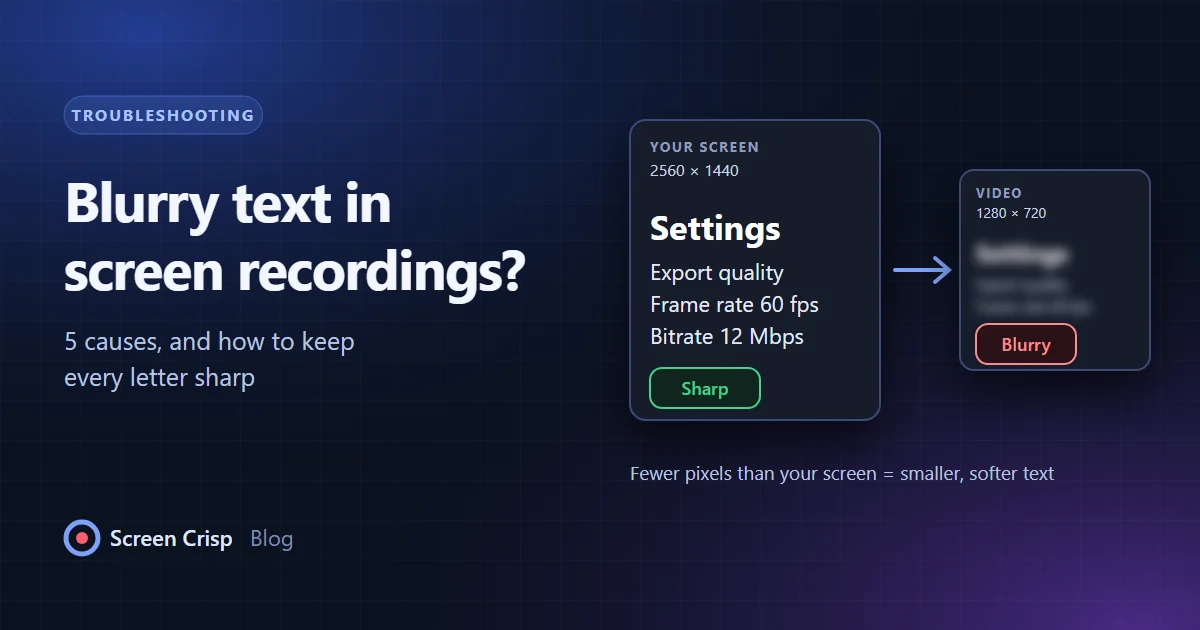
- Record and export at your screen's own resolution, not a smaller one. Fewer pixels means smaller, softer text.
- Check Windows display scaling (Settings > System > Display) and the size your recorder captures at.
- Don't let the export or the upload shrink the video.
- Avoid thin coloured text on coloured backgrounds: colour compression smears it, black and white text stays sharp.
- Keep the bitrate up. To make the file smaller, lower the bitrate a little, never the resolution.
Text in a screen recording looks blurry when the video has fewer pixels than your screen, or when the encoder throws detail away. The usual culprits are recording or exporting below your display's native resolution, Windows display scaling, and color compression that smears colored text.
Many search results for this problem are about blurry text on your monitor (ClearType, scaling settings). That is a different issue. If text looks sharp while you work and only goes soft in the video, the cause is somewhere between capture and playback. Here are the five places it happens, in the order you should check them.
1. The recording is smaller than your screen
A 2560 × 1440 monitor has 78% more pixels than a 1920 × 1080 video. Record that screen into a 1080p file and every line of text is shrunk by a quarter before the viewer sees it. Thin fonts like code editors and spreadsheet cells suffer most, because a one-pixel stroke cannot survive being squeezed into three-quarters of a pixel.
Fix: record at your display's native resolution. Many recorders default to 1080p or "auto". Look for a setting called resolution, output size or scale and set it to match your monitor. If you only need part of the screen, record a smaller region at native resolution instead of the full screen scaled down: a sharp 1280 × 720 crop beats a blurry full-screen shot.

2. Windows display scaling is on
Most laptops and 4K monitors run at 125%, 150% or 200% scaling (Settings, System, Display, Scale). Scaling itself is fine, but it interacts badly with recorders in two ways:
- Older recorders capture at the "logical" resolution. A 4K screen at 200% reports itself as 1920 × 1080 to software that is not DPI-aware, so the recorder downsamples the image before encoding.
- Odd scaling factors land text between pixels. At 125% and 150%, font strokes fall on fractional pixel positions. On screen ClearType hides this; once compressed, the edges blur.
Fix: use a recorder that captures the physical pixels. For a recording session, consider switching to 100% or 200% scaling, which keeps text on whole pixels. If the screen then looks too small, increase the app's own zoom (Ctrl + plus in most browsers and editors) rather than the Windows scale.
3. The video is downscaled on export or upload
Even a perfect recording can be shrunk later. Exporting a 1440p recording at 1080p repeats problem 1. Uploading to a platform that re-encodes to a lower resolution does the same, and some messaging and meeting tools also resize anything you share.
Fix: export at the recording's resolution. When you must deliver a smaller size, crop or zoom in on the part that matters instead of scaling the whole frame down. Make the text bigger in the video, not the video smaller. Zooming in on the area you are explaining is the most reliable fix for small text, because it gives that text more pixels instead of fewer.
4. Color subsampling smears colored text
This is the cause almost nobody explains. Nearly every MP4 you will watch, including what YouTube recommends for uploads, uses 4:2:0 chroma subsampling. The video keeps brightness at full resolution but stores color at half the width and half the height. One color sample covers a 2 × 2 block of pixels.
That is invisible in camera footage, where color changes gently. Screen content is the worst case: hard edges between saturated colors, one pixel wide.
- Black or dark gray text on white survives well, because it is mostly a brightness edge.
- Red, blue or green text, syntax highlighting, colored links and error messages lose their edges. The color bleeds into the background and the letters look soft or fringed.
- Colored text on a colored background, such as white on blue buttons, can turn noticeably mushy.
Fix: you cannot switch 4:2:0 off for video meant to play everywhere. Formats that keep full color (4:4:4) are not supported by most browsers and platforms. Work around it instead. Record at a higher resolution so each 2 × 2 color block is physically smaller. Use a light editor theme with dark text for tutorials. Zoom in on colored details so they span more pixels.

5. The bitrate is too low
An encoder has a budget of bits per second. When the screen changes a lot, as when scrolling, switching windows or playing video, the budget runs out and fine detail is the first thing dropped. Text looks sharp while the screen is still, then smears every time you scroll.
Fix: choose a higher quality preset when recording, especially at 60 fps, which spreads the same bitrate across twice as many frames. Scroll more slowly in tutorials. For screen content, 30 fps is usually enough and leaves more bits for each frame.
How to get sharp text in a screen recording
- Set your recorder to your display's native resolution, or record a smaller region at native resolution.
- Use 100% or 200% Windows scaling for the session, and enlarge text with the app's own zoom.
- Use a light theme with dark text, and avoid thin, saturated colored text for key information.
- Choose a high quality preset, and 30 fps unless you need smooth motion.
- Zoom in on small UI details in the edit instead of relying on the viewer to squint.
- Export at the recording's resolution, and check the result at 100% before you upload.
Small text is also easier to read when the video zooms in on it. See how automatic zoom does that for you.
Check the playback before blaming the recording
Sometimes the file is fine and the player is the problem. A 1080p video shown full screen on a 4K monitor is enlarged two times, which softens every edge. Platforms also start playback at a low resolution and step up later. Before re-recording, open the file itself and view it at 100%.
How Screen Crisp handles text
Screen Crisp records at your screen's native resolution, up to 4K, and exports at that resolution. It never upscales a recording to make it look bigger. Its automatic zoom moves in on the area you click, so small menus and code get more pixels exactly when the viewer needs to read them. You can see the export options on the features page.
If the finished file is too large to share, compress it without shrinking the frame. Lowering the bitrate a little does far less damage to text than lowering the resolution. Our sister app Fast Video Compressor does this offline on Windows.
Frequently asked questions
Why is my screen recording blurry when my screen is sharp?
The video has fewer pixels than your screen, or the encoder removed detail. Record and export at your display's native resolution, use a higher quality setting, and zoom in on small text instead of shrinking the whole frame.
Does recording at 60 fps make text blurrier?
It can. At the same bitrate, 60 fps gives each frame half the data of 30 fps, so text smears more when the screen moves. Use 30 fps for tutorials unless you need smooth motion.
Why does red text look worse than black text in my video?
Most video stores color at a quarter of the resolution of brightness (4:2:0 subsampling). Black text is mostly a brightness edge and stays sharp; red or blue text depends on color detail, which gets smeared.
Should I record at 4K to get sharp text?
Record at your screen's native resolution. If that is 4K, record in 4K and export in 4K. Upscaling a 1080p recording to 4K adds no detail; it only makes the file bigger.
Does Windows display scaling affect screen recordings?
Yes. Older recorders capture the scaled logical resolution instead of the physical pixels, and 125% or 150% scaling puts text on fractional pixels that blur when compressed. 100% or 200% scaling gives the cleanest text.