
Quick answer
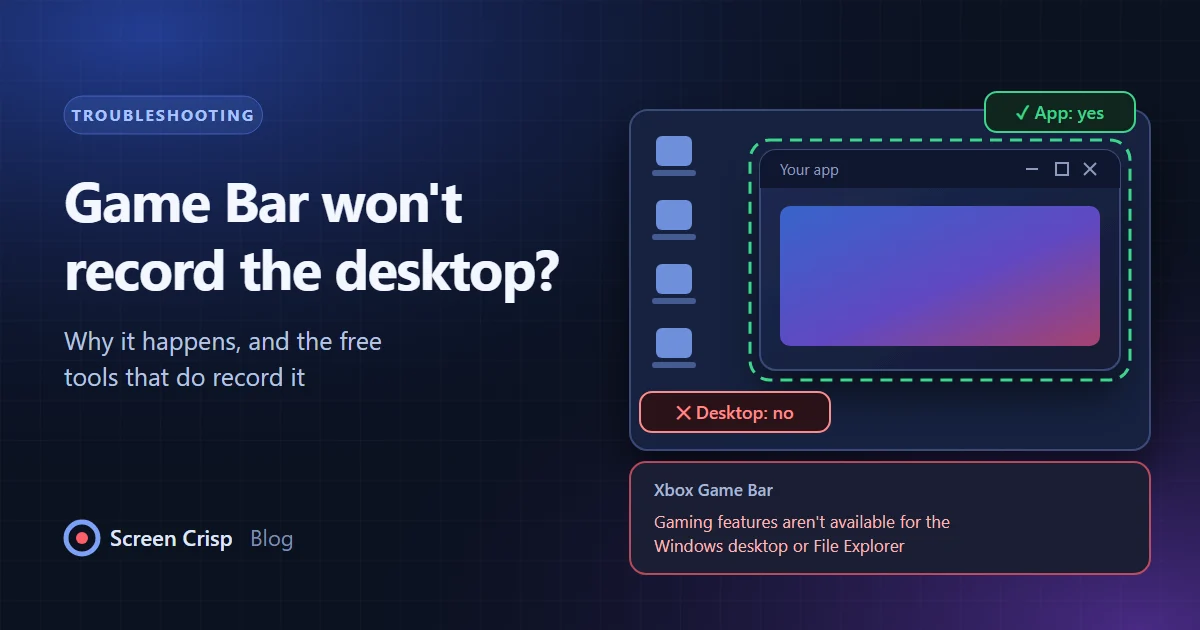
- Why: Game Bar records one app or game window at a time. The desktop and File Explorer are not apps it can capture, and no setting changes that.
- Free fix on Windows 11: press Win + Shift + R and record any area with Snipping Tool, including the desktop and File Explorer.
- Other options: PowerPoint's Screen Recording, or a dedicated screen recorder.
Xbox Game Bar cannot record the Windows desktop or File Explorer, and no setting changes that. It is designed to capture one app or game window at a time. To record the desktop for free, use Snipping Tool (Win + Shift + R) instead.
When you try, Game Bar opens but the record button is grayed out, and you may see the message "Gaming features aren't available for the Windows desktop or File Explorer". Reinstalling Game Bar, resetting it or toggling Game Mode will not help, because nothing is broken.
Why Game Bar refuses to record the desktop
Game Bar is a game capture tool that happens to work on many ordinary apps. It records the window that has focus, and it treats the desktop, the taskbar and File Explorer as part of Windows itself rather than as an app it may capture. That is a deliberate choice. It also keeps people from accidentally recording notifications and other windows while they are gaming.
The same design explains Game Bar's other limits:
- It records one window. If you switch to another app, the recording does not follow you.
- It cannot record a region of the screen or several monitors.
- Some protected or elevated apps refuse to be captured at all.
So if your tutorial involves the desktop, File Explorer, the Start menu or moving between windows, Game Bar is the wrong tool. These three free alternatives are already on most Windows PCs.

How to record the desktop on Windows 11 without Game Bar
- Press Win + Shift + R to open Snipping Tool in recording mode.
- Drag a rectangle around the part of the screen you want, or around the whole screen. The desktop, File Explorer and the taskbar can all be inside it.
- Before you press Start, switch on the microphone and speaker icons if you need sound. Both are off by default.
- Press Start. Snipping Tool counts down from three, then records everything inside the rectangle, including every window you open there.
- Press the stop button in the toolbar. Recent versions save the MP4 to Videos\Screen Recordings automatically; otherwise it opens in Snipping Tool and you save it from there.
Snipping Tool is the closest built-in replacement for Game Bar, and for short clips it is usually all you need. Note that it records a fixed area of the screen, not a particular window. If you move a window out of the rectangle, it leaves the recording. If audio goes missing, our guide to fixing a silent Windows 11 screen recording walks through every cause.
For every step, sound settings and where the video is saved, see our Snipping Tool screen recording guide.
Workaround 2: PowerPoint's Screen Recording
If you have Microsoft 365, PowerPoint can record the screen too. Open a blank presentation, go to Insert, then Screen Recording, select an area, and record. The video lands on a slide; right-click it and choose Save Media As to get an MP4 file. It is clumsy for anything long, but it records the desktop and File Explorer without complaint.
Workaround 3: a dedicated screen recorder
If you record the desktop regularly, a full recorder saves time. OBS Studio is free and can capture a whole display, though it takes some setup and has no editor. Screen Crisp records the full screen, a region or a single window, and then adds automatic zoom on your clicks so a viewer can follow small details like File Explorer menus. Our page on Xbox Game Bar compared with Screen Crisp covers the differences in detail.
Things people try that do not work
- Turning Game Mode on or off. It affects performance, not what Game Bar may record.
- Resetting or reinstalling the Xbox app. The desktop is excluded by design, so a fresh install behaves the same way.
- Marking File Explorer as a game. Game Bar's "remember this is a game" option does not appear for the desktop or Explorer.
- Running Game Bar as administrator. There is no such option, and it would not change the rule.
When Game Bar is the right tool
Game Bar is still a good choice for what it was built for: recording a single game or app window, especially with its background recording feature, which can save the last few minutes after something happens. If your recording never leaves one app, keep using it. Switch to Snipping Tool or a full recorder only when you need the desktop, File Explorer or more than one window.
Our Xbox Game Bar recording guide covers its shortcuts, sound settings and what to do when it won't record.
Frequently asked questions
Why is the Game Bar record button grayed out?
Usually because the desktop, File Explorer or another unsupported window has focus. Click inside the app you want to record first. If the button is still gray on an ordinary app, check that Game Bar is turned on in Settings, Gaming, Xbox Game Bar.
How do I record File Explorer on Windows 11?
Press Win + Shift + R to open Snipping Tool, drag a rectangle around File Explorer, and press Start. Snipping Tool records any part of the screen, including the desktop and File Explorer.
Can Game Bar record two monitors?
No. Game Bar records one window on one display. To record across monitors, use a recorder that can capture a full display or a region that spans screens.
Is there a free way to record the whole screen on Windows?
Yes. Snipping Tool records any area, up to the full screen, with optional microphone and system audio. OBS Studio is another free option for longer or more complex recordings.